Google shipped a wave of Gemini updates this month. I tested all of them on real work. Five are actually worth your time.
I’ve been using Google Workspace for basically everything at Spicy Advisory. Client briefs, campaign trackers, email triage, slide decks for trainings. The usual. So when these updates rolled out, I tested them on my actual work. Not a sandbox. Not a demo. Real tasks, real deadlines.
Here’s what’s worth your time and what you can skip.
The Problem
Google Workspace has had AI features for over a year now. And most marketing teams treat Gemini the same way they treat the office plant. It’s there. They water it occasionally. Nobody really knows if it’s doing anything.
The stats back this up. Enterprise AI adoption surveys keep showing the same pattern: 87% of teams have AI licenses, roughly 23% use them consistently. That gap is where money goes to die. (I wrote about swapping Custom GPTs for Gemini Gems last year. Same problem, different angle.)
And the March 2026 updates? Five major changes across Docs, Sheets, Gmail, Slides, and a brand new tool called Workspace Studio. Most teams will read the announcement blog, nod, and go back to doing everything manually. (I’ve seen this exact pattern with every Google AI rollout since 2024. The blog post gets shared in Slack. Nobody changes anything.)
That’s the gap I want to close today.
Why marketing teams should actually care this time
Marketing teams live inside Google Workspace. Content briefs in Docs. Campaign data in Sheets. Client communication in Gmail. Pitch decks in Slides. And every Friday, someone assembles a weekly report from 14 different sources while questioning their entire career path.
The new Gemini features pull context from across your entire workspace. Your Gmail threads, your Drive files, your Chat conversations. Gemini now knows what you’re working on, not just what you’re typing. That’s different from the “help you write faster” promise we’ve been hearing since 2024 (which was… underwhelming, let’s be honest).
Five features worth your time. Here’s how I actually use each one.
"Help Me Create" in Google Docs
What it does
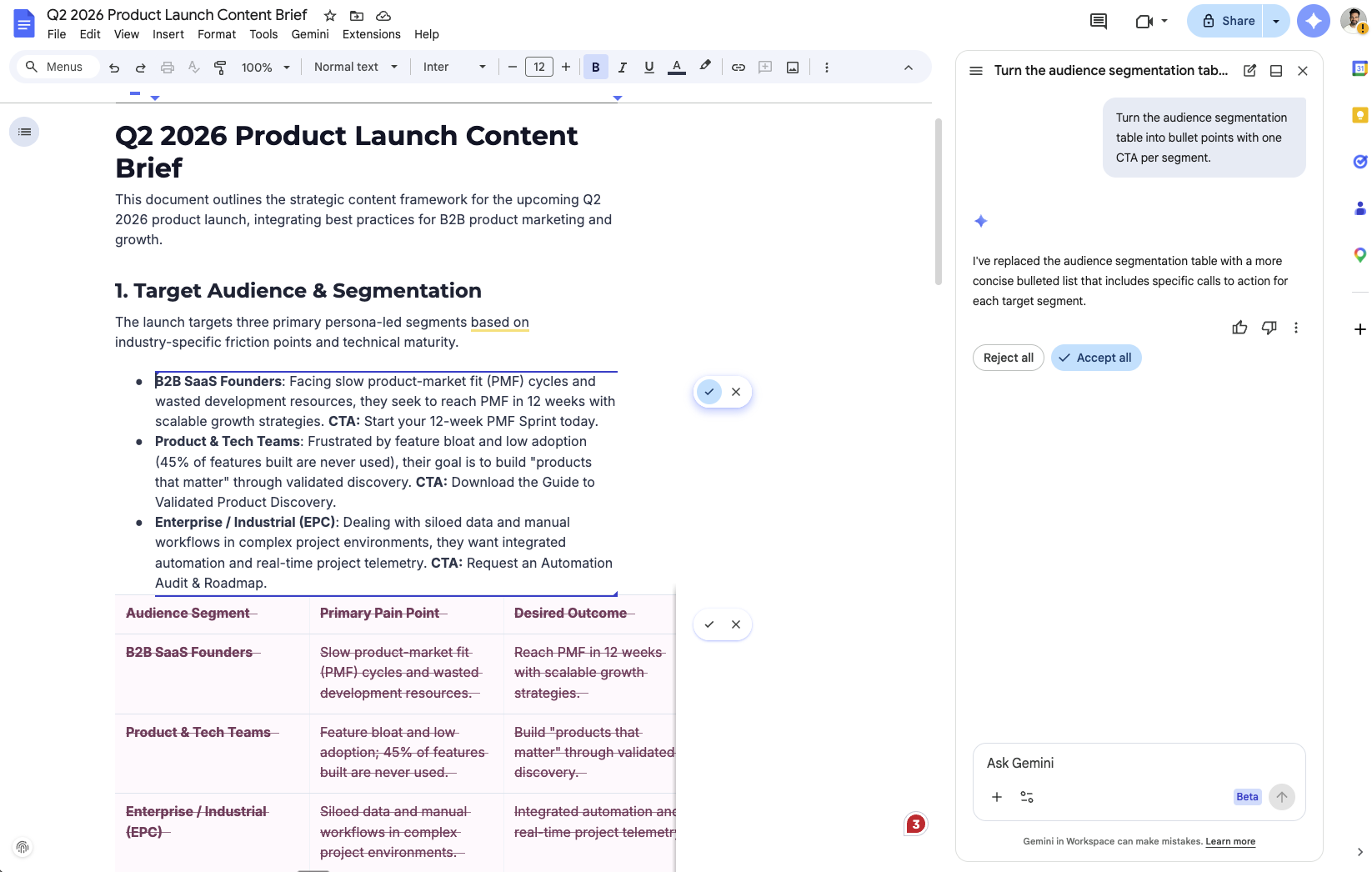
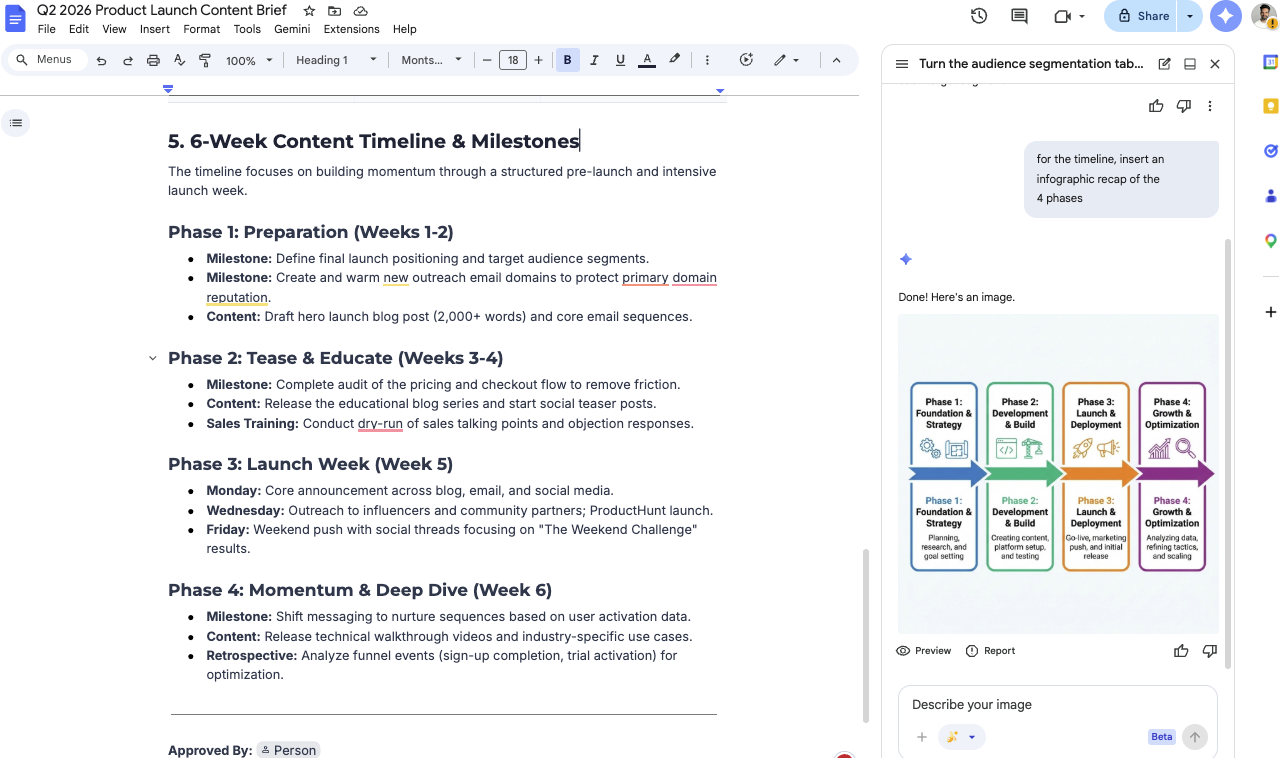
There’s a new “Help me create” button in the Docs side panel (and a new bottom bar). You describe what you want, and Gemini goes looking through your Drive, Gmail, and Chat for relevant context before it writes anything. The output is based on your actual files, not generic internet text.
Why this matters for marketing
Content briefs used to mean: open 6 tabs, copy-paste from research docs, reference the strategy deck, pull in competitor data, lose 45 minutes. Now you describe the brief and Gemini assembles a first draft from your existing files. (If you’ve used Claude Skills for PMM workflows, same logic. Package the thinking once, reuse it.)
The prompt: content brief
Create a content brief for a blog post about [TOPIC]. Pull from:
- The competitive analysis document in my Drive titled "[FILENAME]"
- The Q1 campaign strategy deck
- Any recent emails from the content team about this topic Include:
- Target audience and their pain point
- 3 key angles to cover
- Competitor gaps we can fill
- Suggested word count and format
- 2-3 internal sources to reference Keep it under 500 words. Use bullet points for the key angles section only.
How I use it
I run a version of this prompt every time I prep a newsletter issue for Vibe Work. I point it at my notes folder, my recent Gmail threads with sources, and whatever research docs I’ve bookmarked that week. The draft it pulls together isn’t publishable (it never is), but it’s a solid 60-70% starting point that saves me about 30 minutes of context-gathering. Similar to what I described in ChatGPT Projects, but this time the context lives in your Workspace, not a separate tool.
You’ll know it worked if: your first draft references your actual files. If it reads like it could’ve been written for anyone, adjust the prompt to point at specific documents.
Natural Language Spreadsheets in Google Sheets
How it works
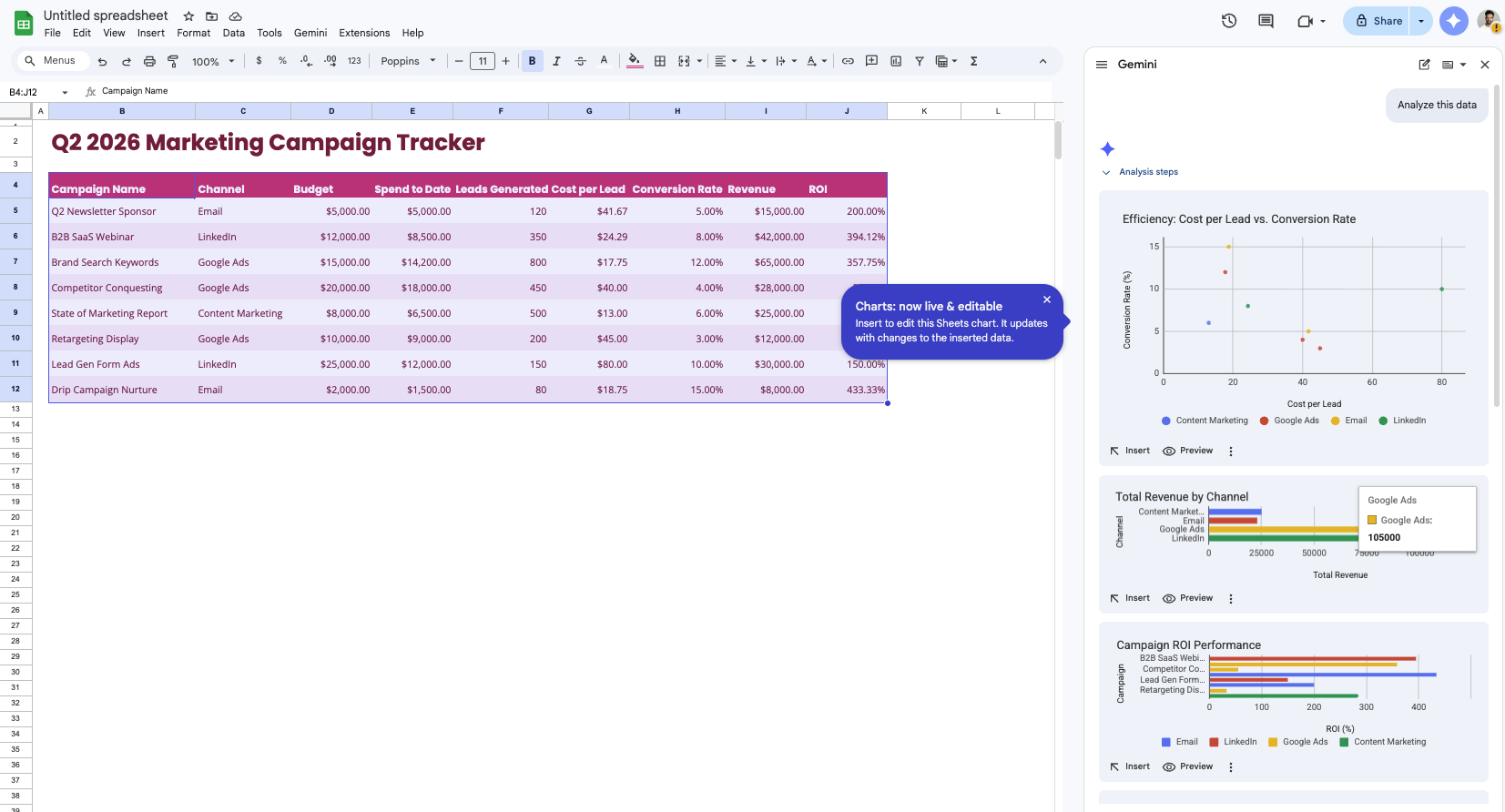
You tell Gemini what you need in plain language, and it builds the whole spreadsheet. Not a template with empty columns. It actually fills in cells with data from your Gmail, Drive, and the web.
Then there’s “Fill with Gemini,” which auto-populates tables from existing data or the web. Google says it’s 9x faster than manual entry for 100-cell tasks. (Source: Google’s March 2026 Workspace blog post.) I tested it. 9x feels generous, but it’s fast. Actually fast.
The prompt: campaign tracker
Build a campaign tracking spreadsheet with the following columns:
- Campaign name
- Channel (LinkedIn, Email, Google Ads, Organic)
- Status (Planning, Live, Paused, Completed)
- Start date
- Budget allocated
- Budget spent
- Leads generated
- Cost per lead
- Notes Add conditional formatting: green for campaigns under budget, red for over budget.
Add a summary row at the bottom with totals for budget and leads.
Pre-fill with any campaign data you can find in my recent emails or Drive files related to Q1 2026 campaigns.
The “Fill with Gemini” trick for competitive research
This is the one that surprised me. You can create a table with competitor names in column A, then use Fill with Gemini to auto-populate columns like “pricing model,” “target audience,” “latest product update,” and “social media presence.” It pulls from the web. The data isn’t perfect (always verify), but it gives you a research starting point in 2 minutes instead of 2 hours. Similar energy to what I covered in AI data analysis for weekly WIPs, but now it’s native inside Sheets.
The test: you have a spreadsheet with real data (even partial) that you can build on. If it’s just headers and empty cells, the prompt needs more context.
Gemini in Gmail for Marketing Communication
The update
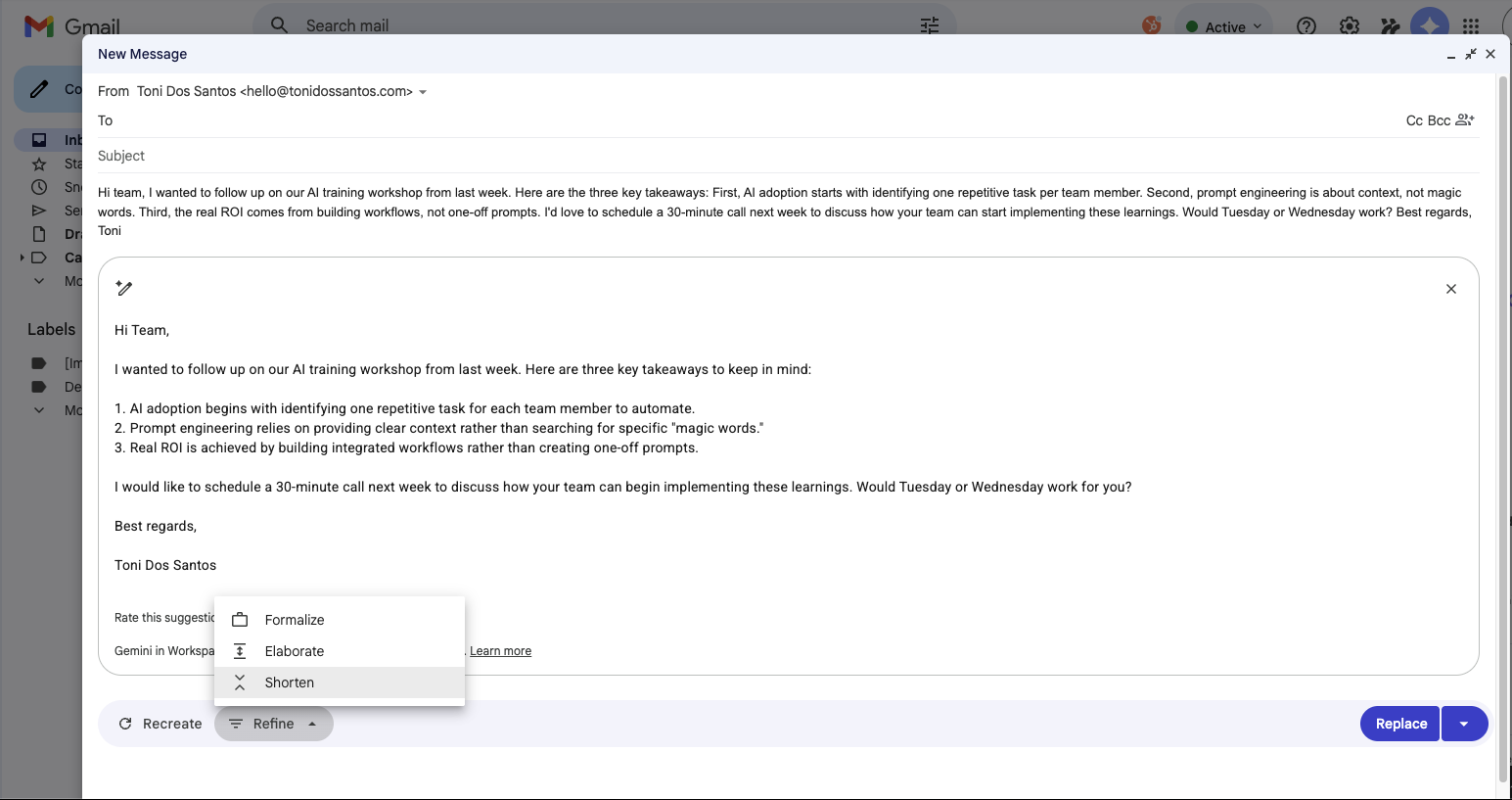
Gmail now has AI Overviews that summarize entire email threads, “Help Me Write” for drafting and polishing, and Suggested Replies that actually match your writing style (finally). The big addition: you can ask your inbox questions in plain English. (”What was the budget figure Sarah mentioned in the campaign thread last week?”)
The prompt: partnership replies
Draft a reply to this email. Tone: professional but warm. Keep it under 150 words. Key points to include:
- Thank them for reaching out
- Confirm interest in exploring a partnership
- Suggest a 20-minute call next week
- Mention that I work with marketing and sales teams on AI adoption (dadoum Labs) Don't use: "hope this finds you well," "I would be delighted," or "please don't hesitate to reach out."
The inbox question trick
For real, this is useful. If you manage multiple campaigns, you know the pain of digging through 47 email threads to find that one budget number or approval someone mentioned two weeks ago. Now you just ask: “What did [person] say about the Q2 budget in our last thread?” Gemini surfaces the answer with the exact email cited. I use it at least twice a day now.
Try this right now: ask your inbox one question you’d normally spend 5 minutes digging through threads to find. If you get a useful answer, you’ll keep using it. I do.
Gemini in Google Slides
What changed
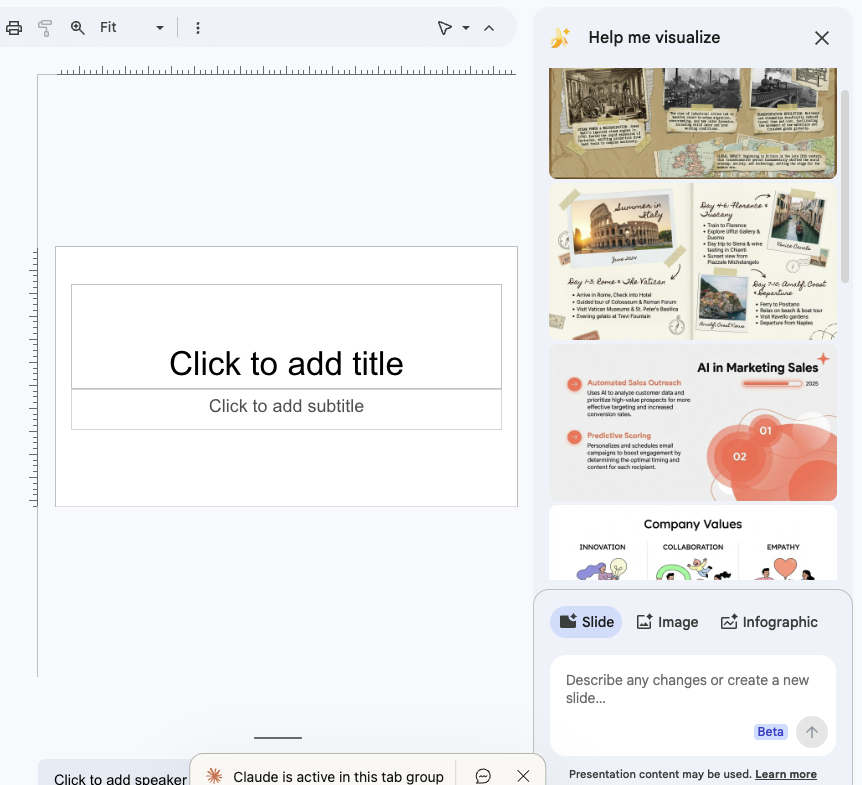
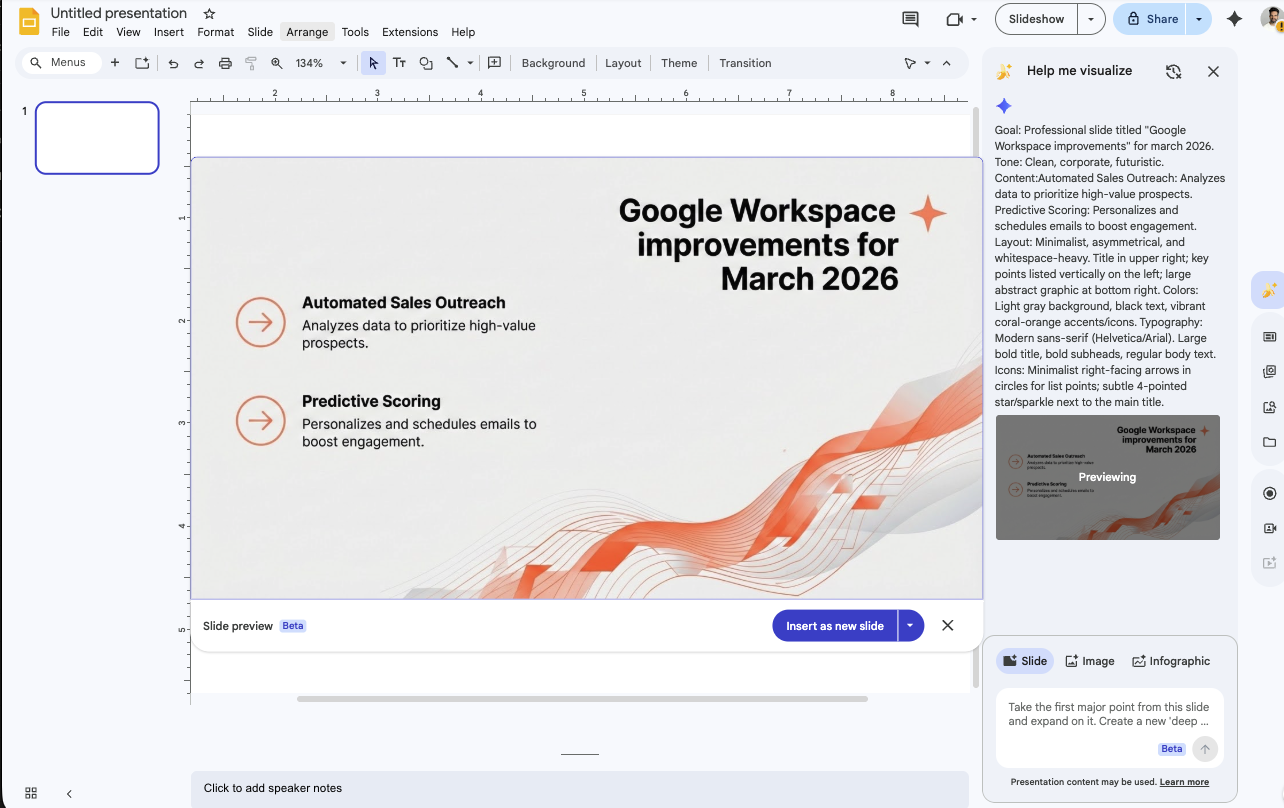
Gemini can now generate slides from prompts, create images with Nano Banana Pro, and pull data from your Drive files into presentations. For marketing teams, the two things worth caring about: image generation and building a deck directly from an existing brief. (I covered other AI approaches to slide decks and NotebookLM’s deck workflow before. This is Google’s native answer.)
The prompt: campaign recap deck
Create a 6-slide presentation summarizing our Q1 2026 marketing campaign results. Pull data from the Q1 campaign tracker spreadsheet in my Drive. Slide structure:
1. Title slide: "Q1 2026 Marketing Results" with subtitle "[Company Name]"
2. Key metrics overview (total leads, total spend, average CPL)
3. Channel breakdown (one section per channel with leads + spend)
4. Top performing campaign with details
5. Lessons learned (3 bullets max)
6. Q2 priorities (3 bullets max) Keep text minimal. Use charts where possible.
What “done” looks like: a deck with 6 slides that contains your actual data (not placeholder numbers) and needs only styling tweaks before sharing. Fair warning: the default styling is… fine. You’ll want to adjust. But the content structure saves you the hardest part.
Workspace Studio (This is a Big One)
What it is
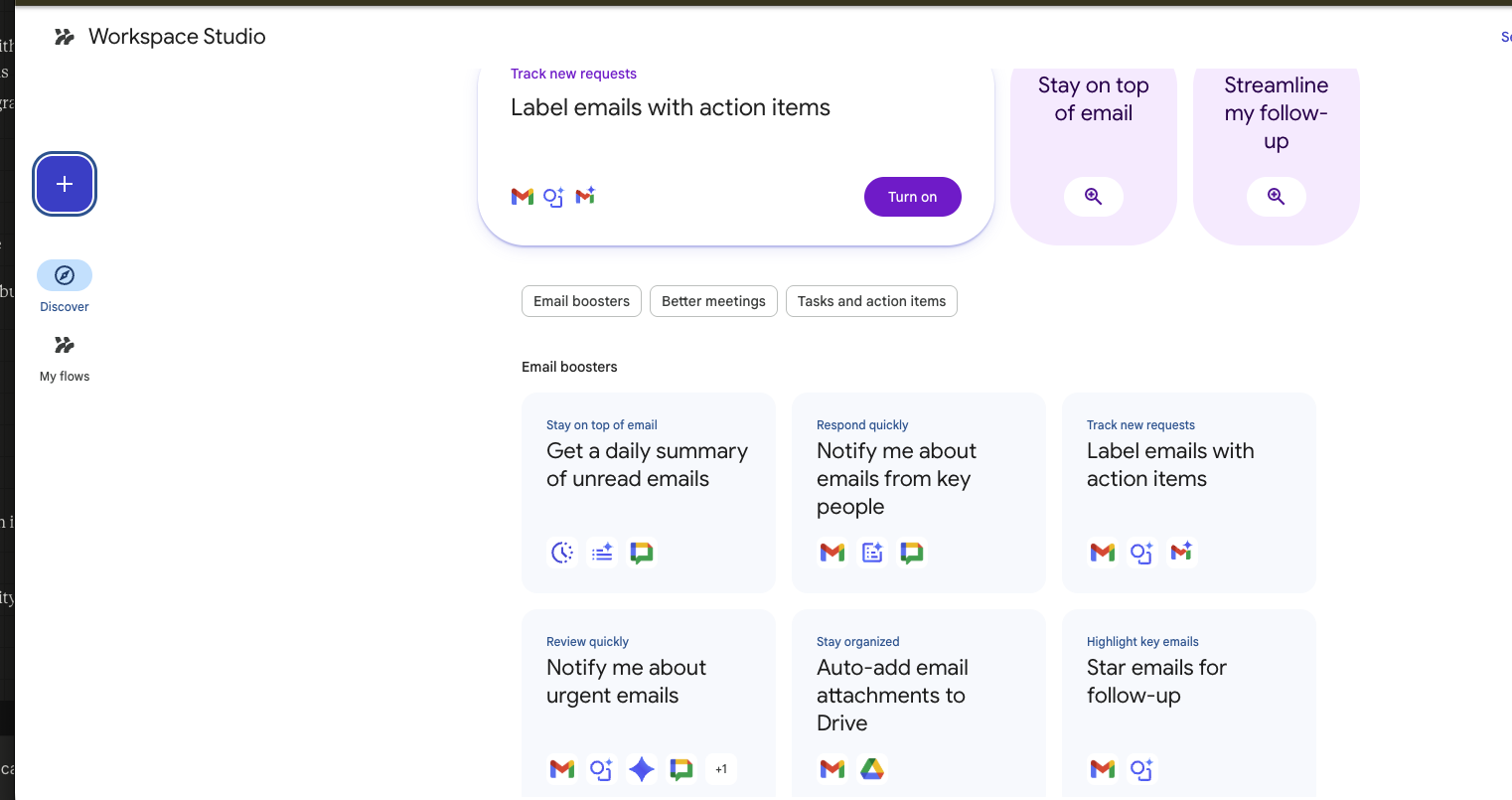
Workspace Studio is Google’s new no-code automation platform built directly into Google Workspace.
Think of it as a visual workflow builder where you can create AI-powered agents that handle repetitive tasks across Gmail, Sheets, Docs, Drive, and Calendar without writing a single line of code.
It lives inside your existing Workspace environment (not a separate tool), and it’s available to all Google Workspace Business, Enterprise, and Education Plus customers.
How it works
Workspace Studio launched to all domains on March 19, 2026. Four days ago as I’m writing this. It’s a no-code builder for AI agents that run recurring tasks inside Google Workspace. You describe what you want done. Gemini builds the agent. It runs on a schedule or trigger you set.
Google says customers in the early access program handled more than 20 million tasks in 30 days using agents. (Source: Google Workspace blog.) That’s a big number. But the interesting part isn’t the volume. It’s that non-technical people built those agents.
Why this is the biggest update
This is where it gets real for marketing teams. The other four features save you time on individual tasks. Workspace Studio changes how the work gets structured. You’re building an agent that does the task on autopilot while you do... basically anything else.
For our Vibe Subscribers
Paid subscribers get:
- Full Workspace Studio setup walkthrough: Step-by-step agent build for a weekly marketing report that pulls data from Sheets, summarizes campaign performance, and drafts an email summary to your team. Every Friday. Hands-free.
- Advanced “Fill with Gemini” workflow for competitive intelligence: A 5-step process to build a living competitive tracker that updates itself from the web.
- Gmail triage agent: Categorizes incoming partnership, press, and sales emails, drafts responses by category, and flags high-priority items for your review.
- Prompt library: 8 additional copy-paste prompts for specific marketing tasks across all five tools.
Want to go deeper? At Spicy Advisory, we help startups and scale-ups integrate AI into their product and GTM processes. Explore our AI adoption programs for hands-on workshops and deployment support.